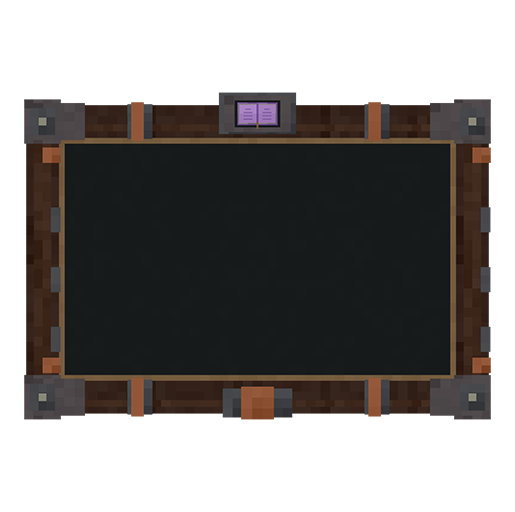
Tablet settings and accessibility
Open Settings in the tablet. These preferences are local to your Minecraft client and do not change server quest definitions or rewards.
Choose a display mode
The animated 3D tablet and the flat 2D interface use the same quest layout and actions. Disable the tablet display option to use the flat view. Use Interface scale to make the complete interface larger or smaller.
Enable Reduced motion, or disable animations, if the opening movement and ambient tablet effects are distracting. Reduced motion also removes the drifting decorative motes.
Disabling Animations or Tablet transitions keeps the 3D tablet and opens it directly in its reading pose, with immediate closing. To open and close the flat interface immediately, disable both 3D tablet and Animations.
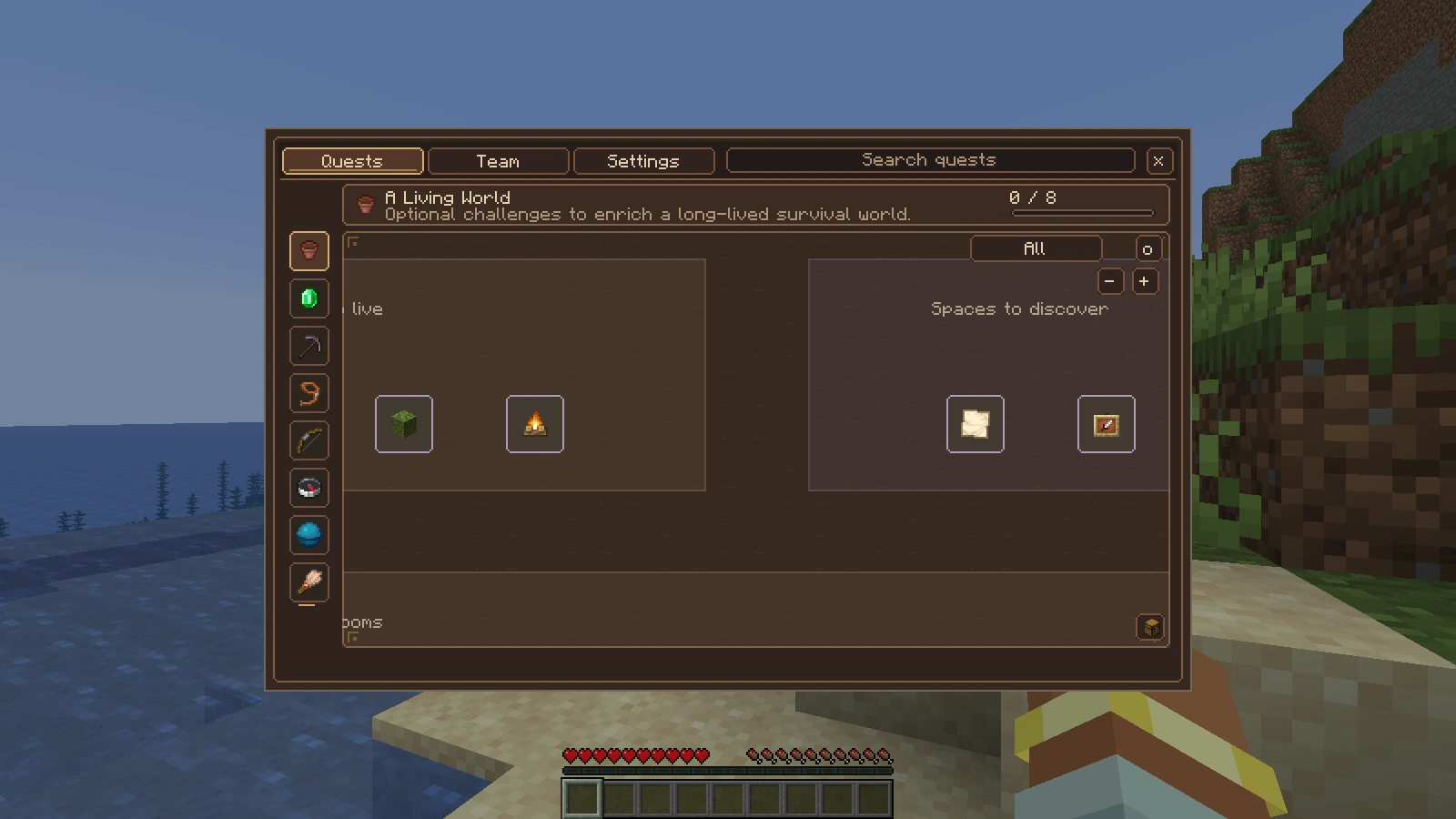
The flat view gives the same controls more direct screen space, without the 3D pose.
Make the screen readable
Self Illumination controls whether the 3D screen provides its own light. Screen brightness dims that screen independently of the world. Neither option changes the flat interface colours.
Tree resolution adjusts the 3D screen from 1× (500 × 300 pixels) to 8× (4000 × 2400). The new default, 6× (3000 × 1800), doubles the previous width and height. Changes apply immediately and keep interface size, tree zoom and pointer coordinates unchanged. Older configuration files receive the new default while retaining other preferences.
Increase it for more texture detail, or lower it to reduce GPU time and memory use. The screen's colour/depth texture uses about 45 MiB at 6× and 78 MiB at 8×. The flat interface renders directly to the Minecraft window. At extreme zoom-out, tiny letters remain limited by the number of pixels on your display.
When a shader pack is active, QuestPlus automatically suppresses its background blur. Shader depth of field and reflections still come from the shader pack. Adjust those in Iris if they obscure the tablet.
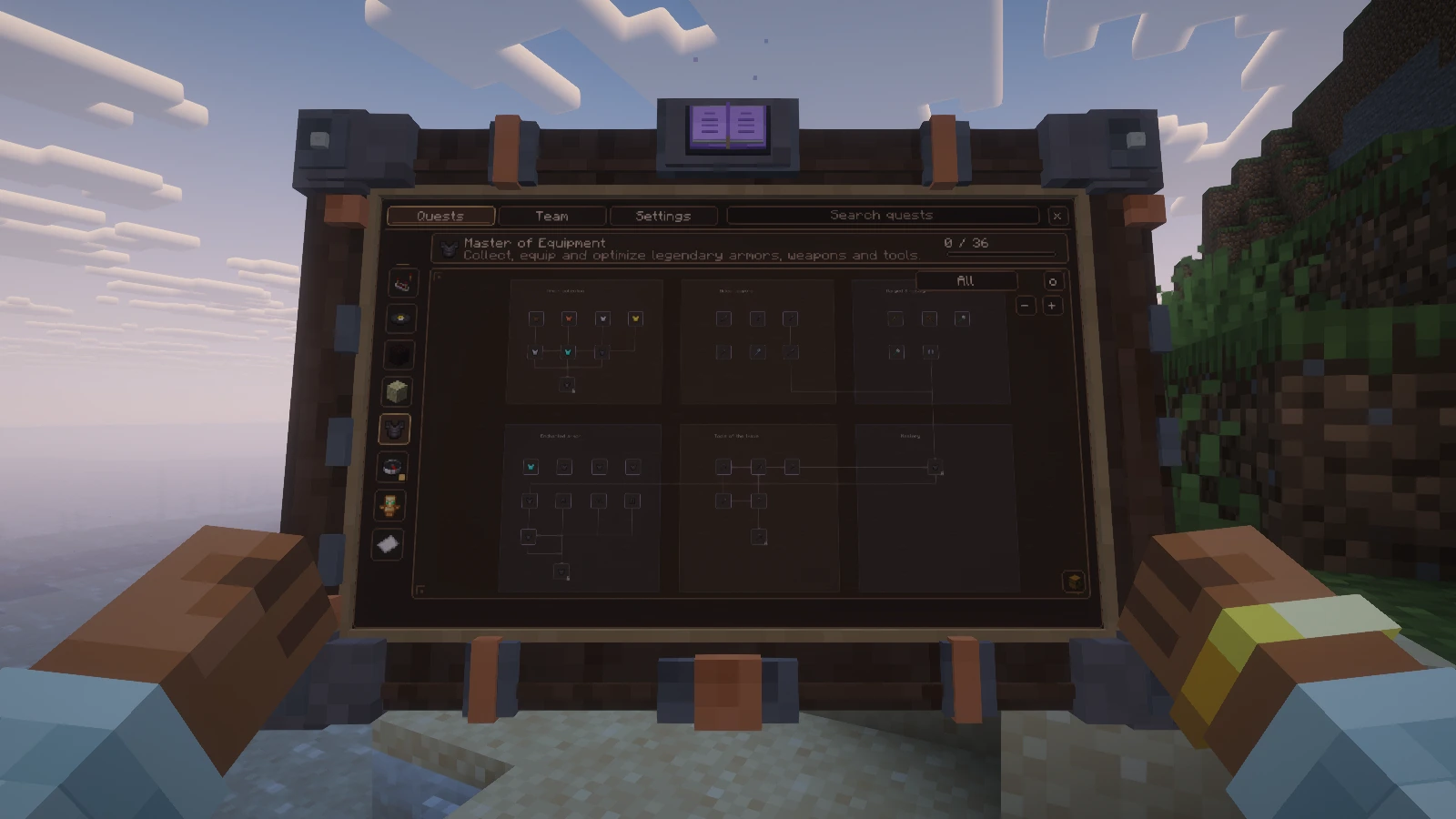
Shaders are optional. This example shows the 3D display with its illuminated screen.
Keep the HUD useful
Pin up to three quests from their details. They remain pinned until you explicitly unpin them, including completed quests and repeatable or tiered quests between cycles. The HUD is enabled by default for new configurations and only appears when you have pinned quests. You can disable it in settings. Existing saved preferences are preserved.
HUD position and notification position are separate preferences. Move either display if it overlaps another mod's interface. Turning off notifications does not stop quest progress.
By default, damage closes the tablet. Enable the option to keep it open on damage only if that suits your play style.
Keyboard and configuration
Change J in Minecraft's key bindings if another mod uses it. In menus, use the displayed keyboard hints and normal focus navigation. The flat view is also available when a rendering or animation combination is uncomfortable.
Preferences live in config/questplus-client.json. Close Minecraft and back up this file before editing it manually. Player progress lives on the server, in a separate location.