Guide for modpack creators
Create a quest pack in Quest Studio, test it in Minecraft, and ship it as the default for new worlds. You can also bring supported FTB Quests definitions into Studio.
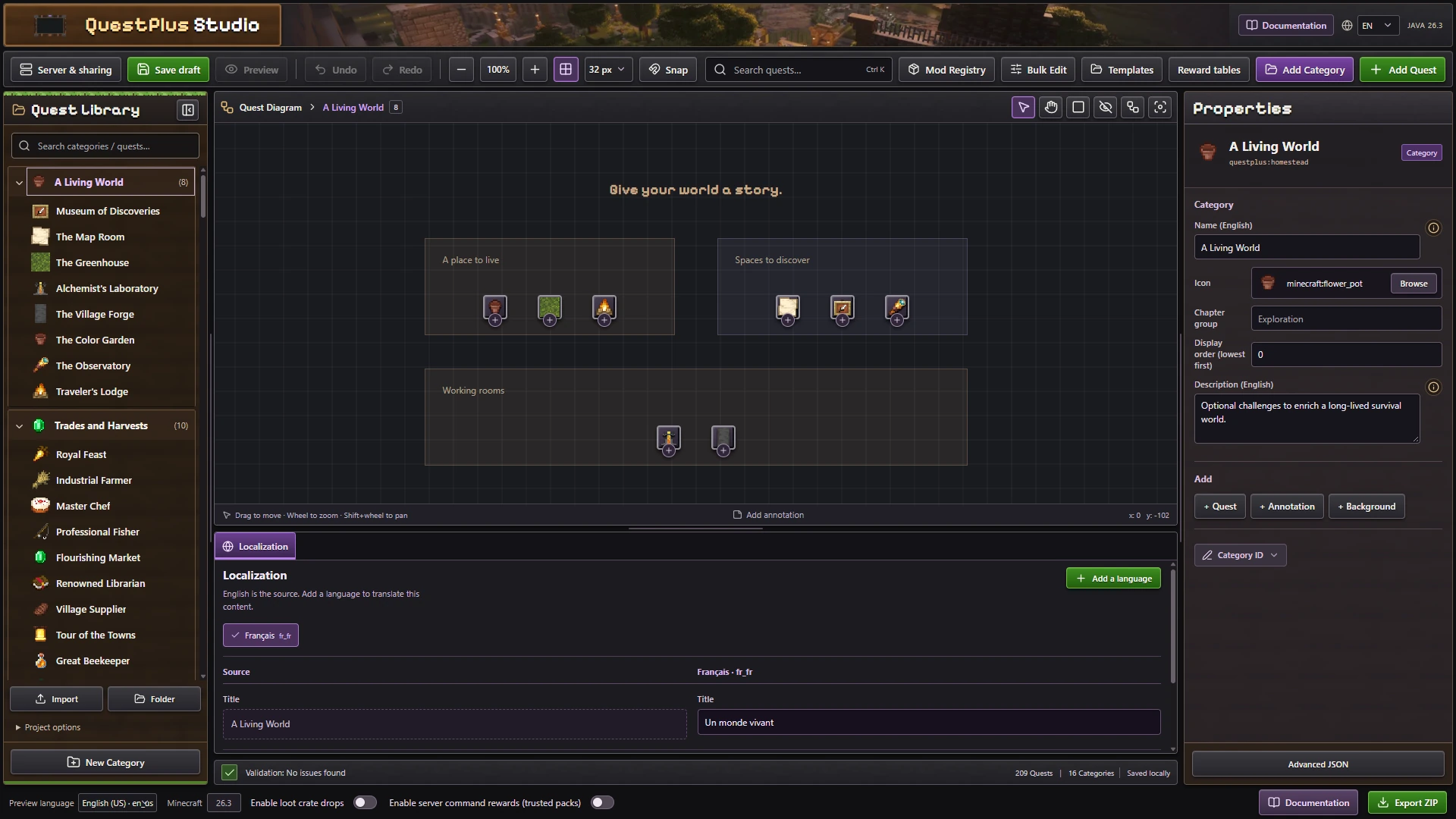
Create your quests
- Install Quest Plus and Fabric API in your modpack, then open Quest Studio.
- Create a project, add categories and quests, and set their objectives, prerequisites and rewards. Use IDs from the mods installed in your pack.
- Fix the validation errors and select Export ZIP. Keep the ZIP as a backup: browser drafts are local to that browser.
See Categories and quests, Objectives and Rewards for the available options.
Install and test in a world
- Create a disposable test world with the same mods and configuration as your modpack. Back up any existing world before changing its quests.
- Stop the world or server. Extract the ZIP into
<world>/questplus/, soconfig.json,categories/andquests/are directly inside that folder. Include the other exported files, includingqueststudio-compatibility.jsonwhen present. For a replacement, remove the old definition files from this folder first so obsolete quests do not remain. Preserve or review the world'sconfig.jsonif it contains settings you need. - Start the world and check the log for validation errors. On a running server, an operator can use
/questplus reloadafter updating the files. An invalid reload is rejected. - Open the tablet with J and test as a player in survival or adventure mode. Verify that quests unlock in the right order, objectives count the intended actions, and rewards can be claimed. Test team and repeatable quests with the settings you intend to ship.
- Use
/questplus progress <quest>to inspect progress and/questplus diagnose <quest>as an operator to inspect conditions. For targeted retests,/questplus quest reset <player> <quest>resets that player's quest progress. A fresh test world is useful for checking the complete first time experience.
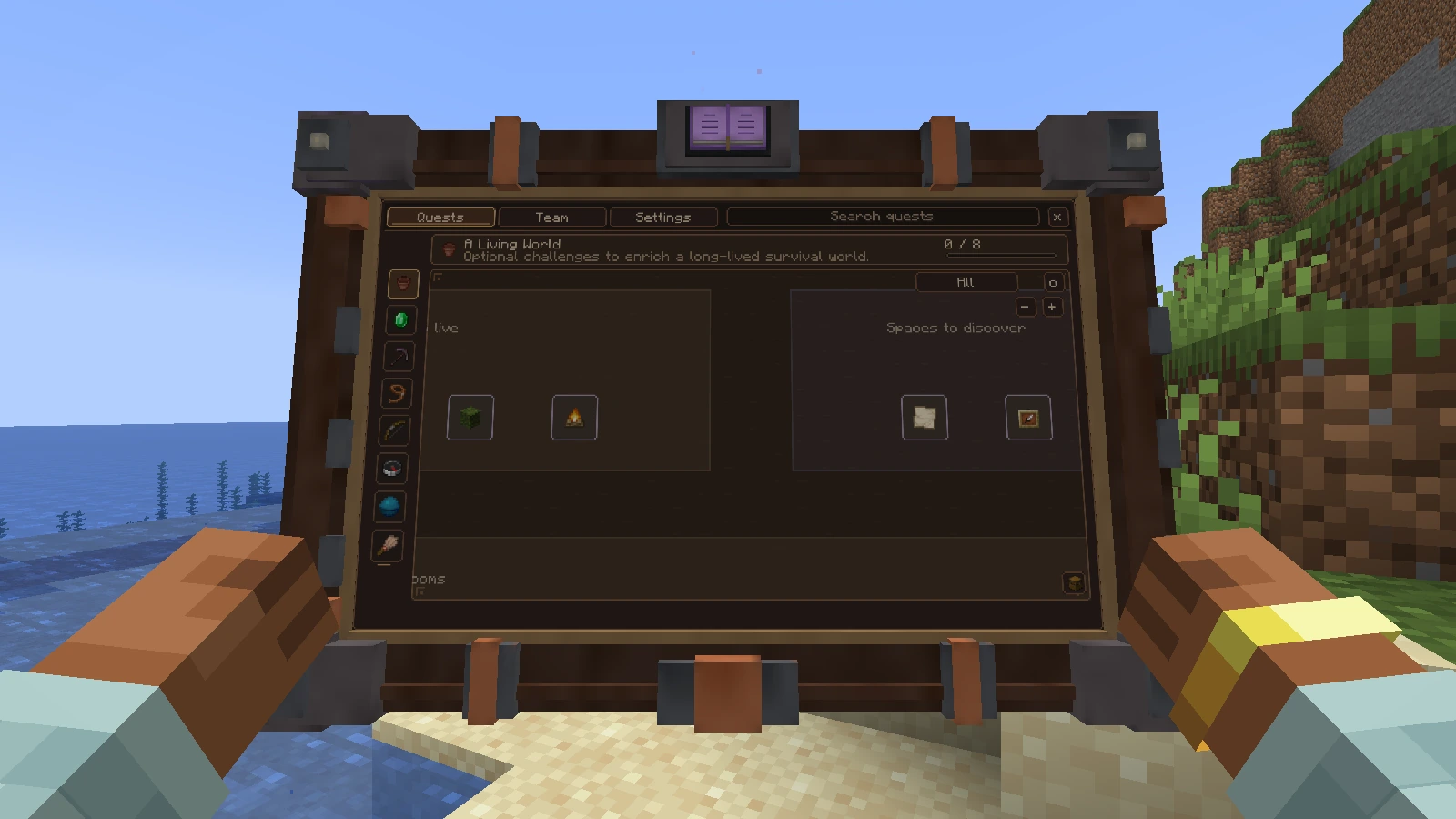
Gameplay events do not count in creative or spectator mode. Obtaining, crafting and possessing an item are different objectives: /give does not simulate picking an item up from the ground.
Protect player progress
Definitions live in <world>/questplus/, player data lives in <world>/data/questplus/. Do not replace the latter when updating quests. Keep quest and objective IDs stable across releases, because renaming them does not transfer progress.
Ship the quests with your modpack
Quest Plus creates config/questplus/default/ in the Minecraft instance or server directory with the bundled quests when no default pack exists. Each new world receives its own copy at <world>/questplus/. By default, existing worlds are not changed when the default pack changes.
To ship your pack, replace the contents of config/questplus/default/ with the exported files, including config.json, categories/, quests/, and queststudio-compatibility.json if present. Distribute that folder with the modpack and test a new world on a clean instance. Do not include player progress from <world>/data/questplus/.
With Quest Hub configured, an operator can use /questplus editor default to edit the defaults or /questplus editor world to edit the current world. /questplus editor target the current world. Changes to defaults affect future worlds and worlds with automatic sync enabled.
To update existing worlds automatically, distribute config/questplus/sync.json alongside the default pack:
json
{ "autoSyncDefaults": true }The option defaults to false. At world or server startup, Quest Plus checks whether the default pack has changed since its last successful sync. On the first enabled startup it also applies the pack to existing worlds. It validates the complete pack, backs up the previous world definitions in <world>/questplus-hub-backups/, and retains player progress. An invalid update is logged and the existing definitions remain active. World edits are replaced on the next default pack change unchanged defaults do not overwrite them. The server's own config controls multiplayer worlds. Updates require a world or server restart.
You can instead use /questplus retrieve and then /questplus retrieve confirm within two minutes. Keep quest and objective IDs stable and test upgrades on a copy of a real save. Removing or changing objectives or rewards can still change the meaning of existing progress.
Import FTB Quests
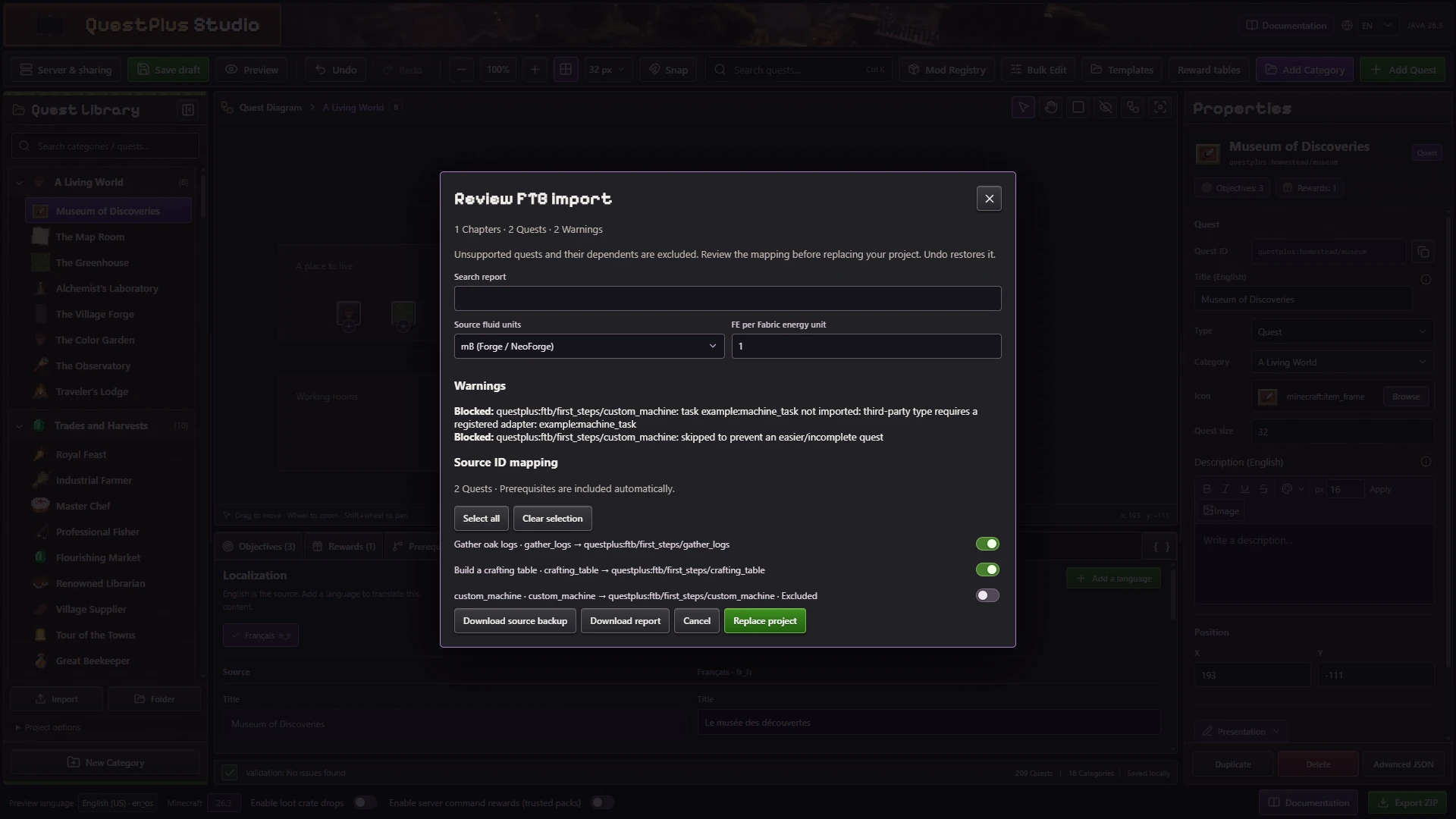
- Export your current Studio project as a backup. Importing FTB definitions replaces the current project.
- In Studio, use Folder or Import to select the FTB quest source containing
chapters/files in JSON, JSON5 or SNBT format, together with the related data and local assets when available. Studio detects supported FTB content and opens the conversion review. - Review the warnings and source to QuestPlus ID mapping. Select the quests to import, their prerequisites are included automatically. Set the source fluid units and FE per Fabric energy unit to match the original pack. Download the report and source backup if needed.
- Select Replace project, inspect the result, fix any reported issues and export a Quest Plus ZIP. Install it into a test world and play through the imported quests.
Unsupported quests and their dependents are excluded with a reason. Custom scripts, third party tasks and Task Screens need separate work and are not automatically converted. Review warnings for unsupported rewards or mechanics, a successful import does not prove the original modpack works on Fabric or that every quest behaves identically.
The Studio import converts definitions, not player saves. The separate FTB progress migration commands are an operator workflow for existing worlds.
Edit a running server
For iterative testing, a configured Quest Hub lets an operator approve a Studio session and publish definitions to the server. See Import and publish. Wait for server confirmation and test the result in game.